


Laptops for Video Editing (2026)
Have you ever felt like you need to be rich just to buy a computer that won’t freeze while you create? I have been exactly where you are, staring at a stuck screen and losing hours of hard work. The good news is that you don’t have to empty your wallet to make great videos. I have tested dozens of laptops this year to find the perfect combination of speed and value, cutting out the confusing tech talk to focus on what actually works. In this article, I will show you the most affordable laptops for video editing that deliver amazing videos or content on a budget. So what are you waiting for? Ready to stop stressing over crashes and upgrade your creative setup for less? Keep reading to discover the perfect machine for you.
The Quick List
Acer Swift Go 16 AI
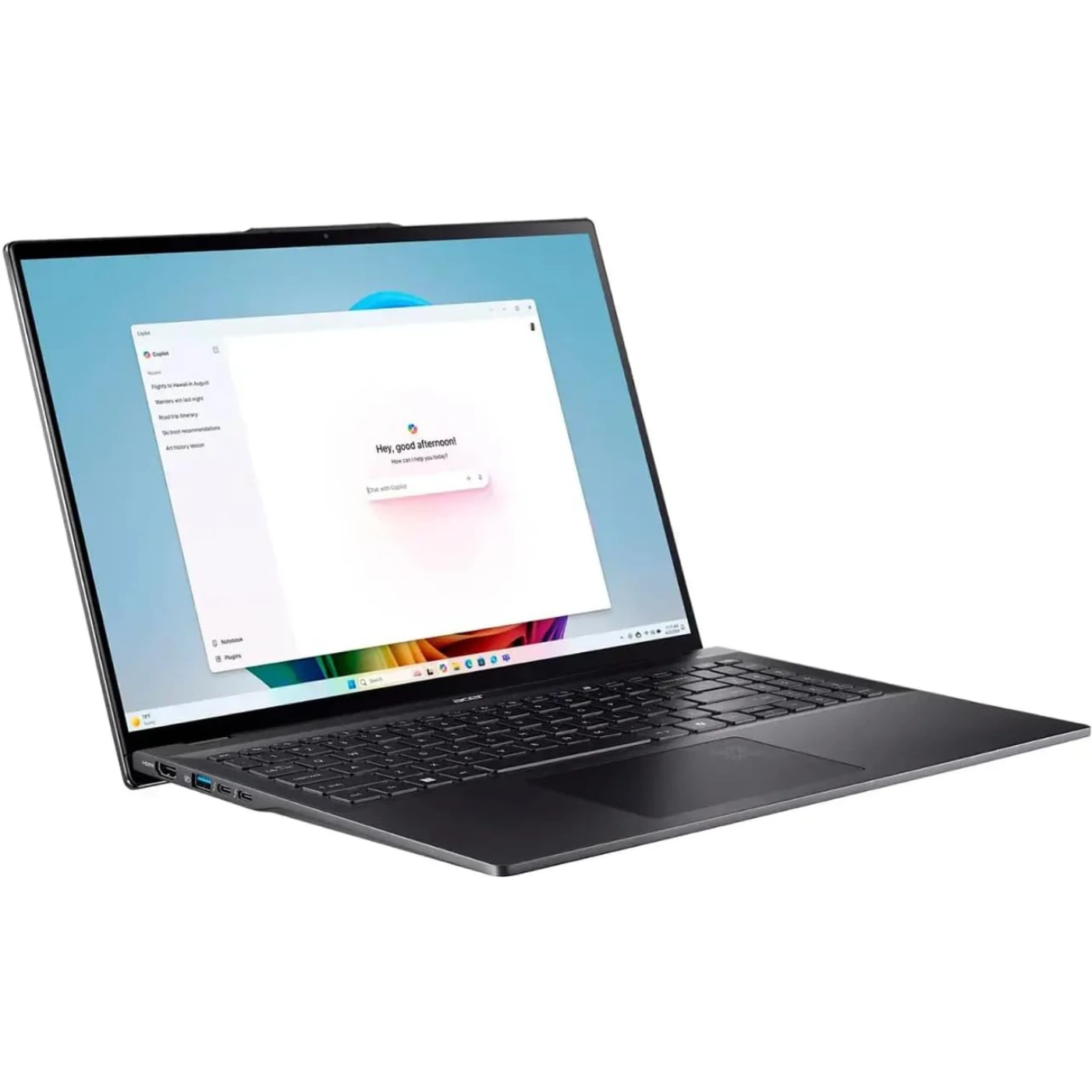
Best Video Editor on a Budget
★★★★☆ 4.0 Great
±£1399/±US$1883
ASUS Vivobook 16 OLED
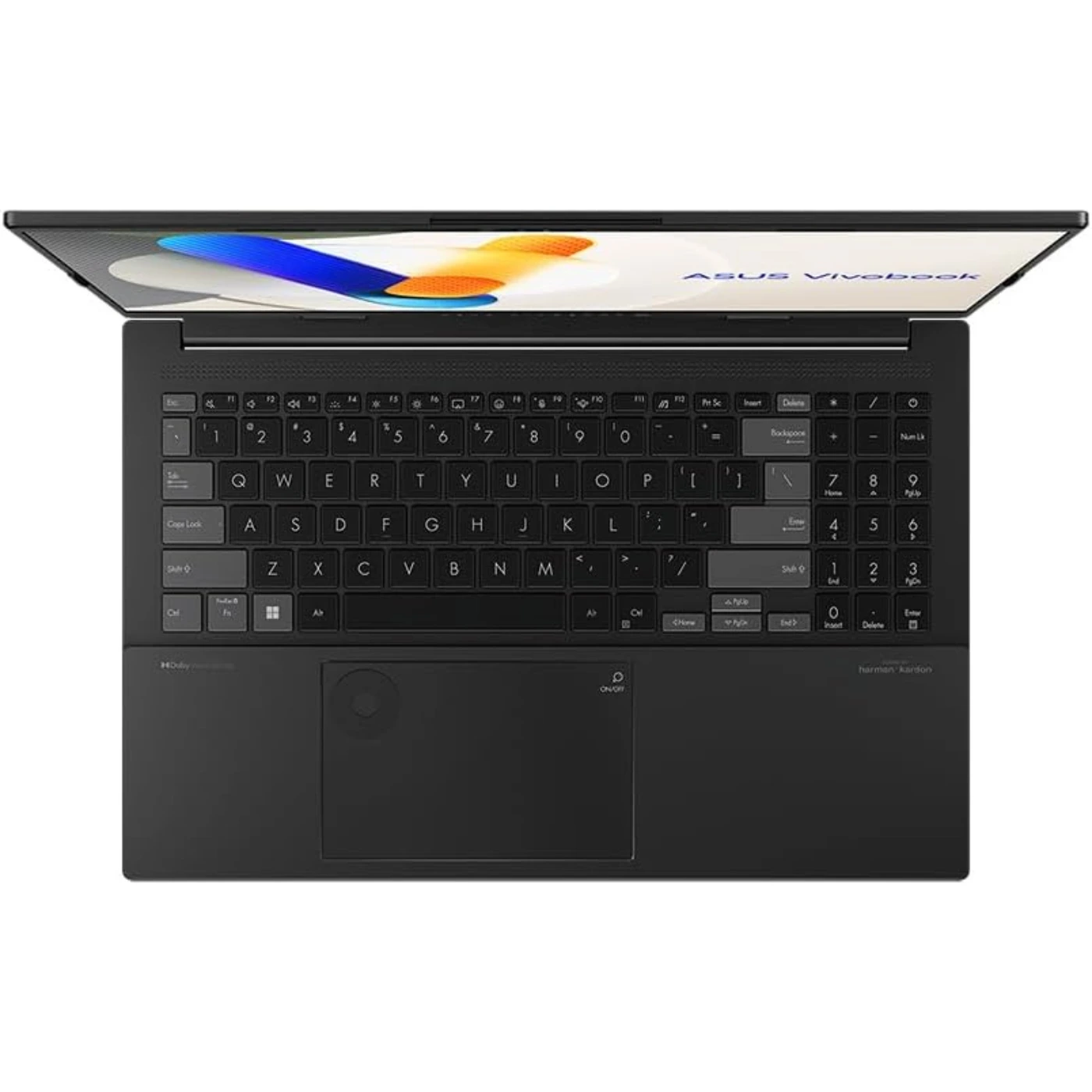 Best Budget Laptop for Video Editing
★★★★⯪ 4.3 Great
±£500/±US$672
Lenovo Legion 5i
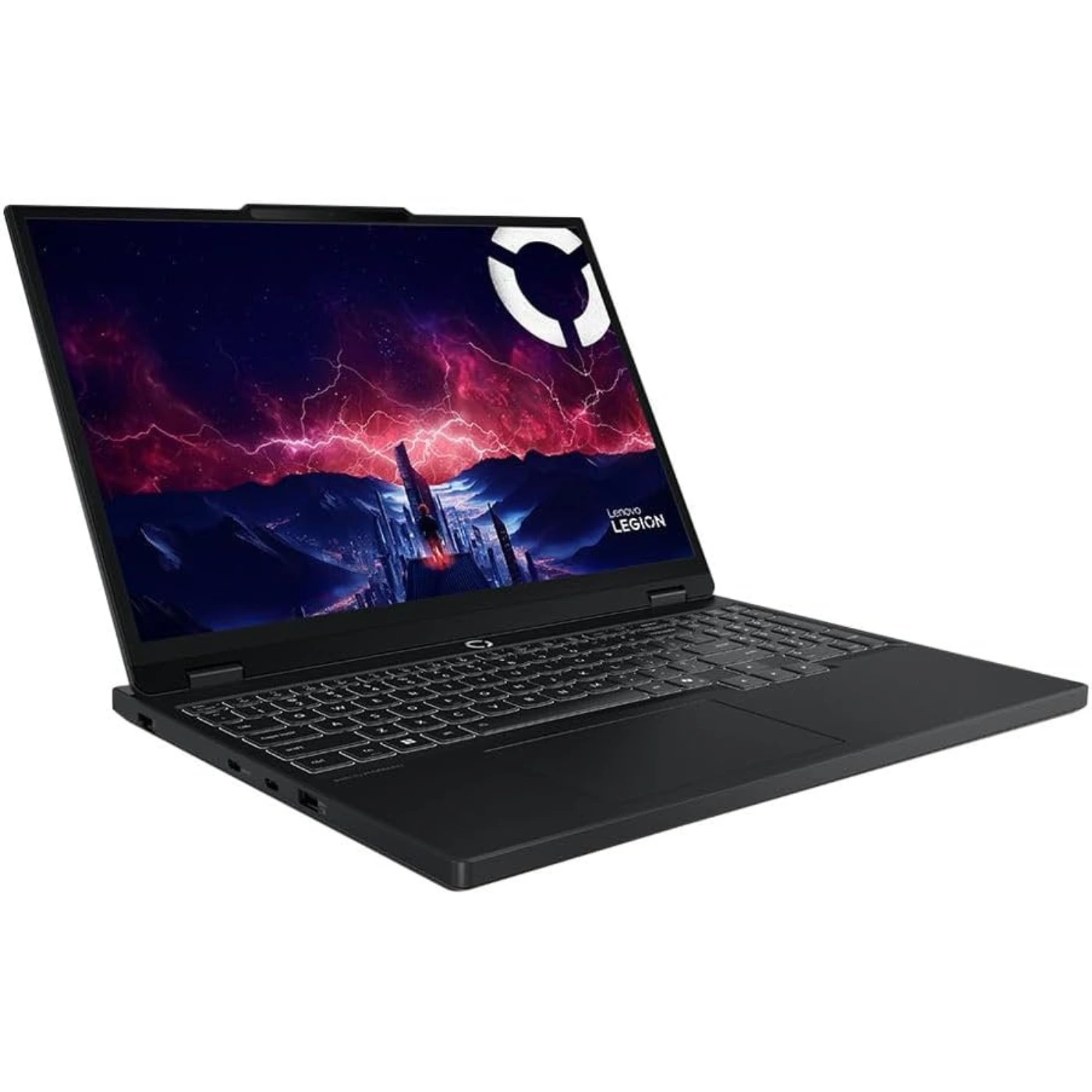 Best Budget Gaming Laptop for Video Editing
★★★★⯪ 4.2 Great
±£1264/±US$1700
Apple MacBook Air
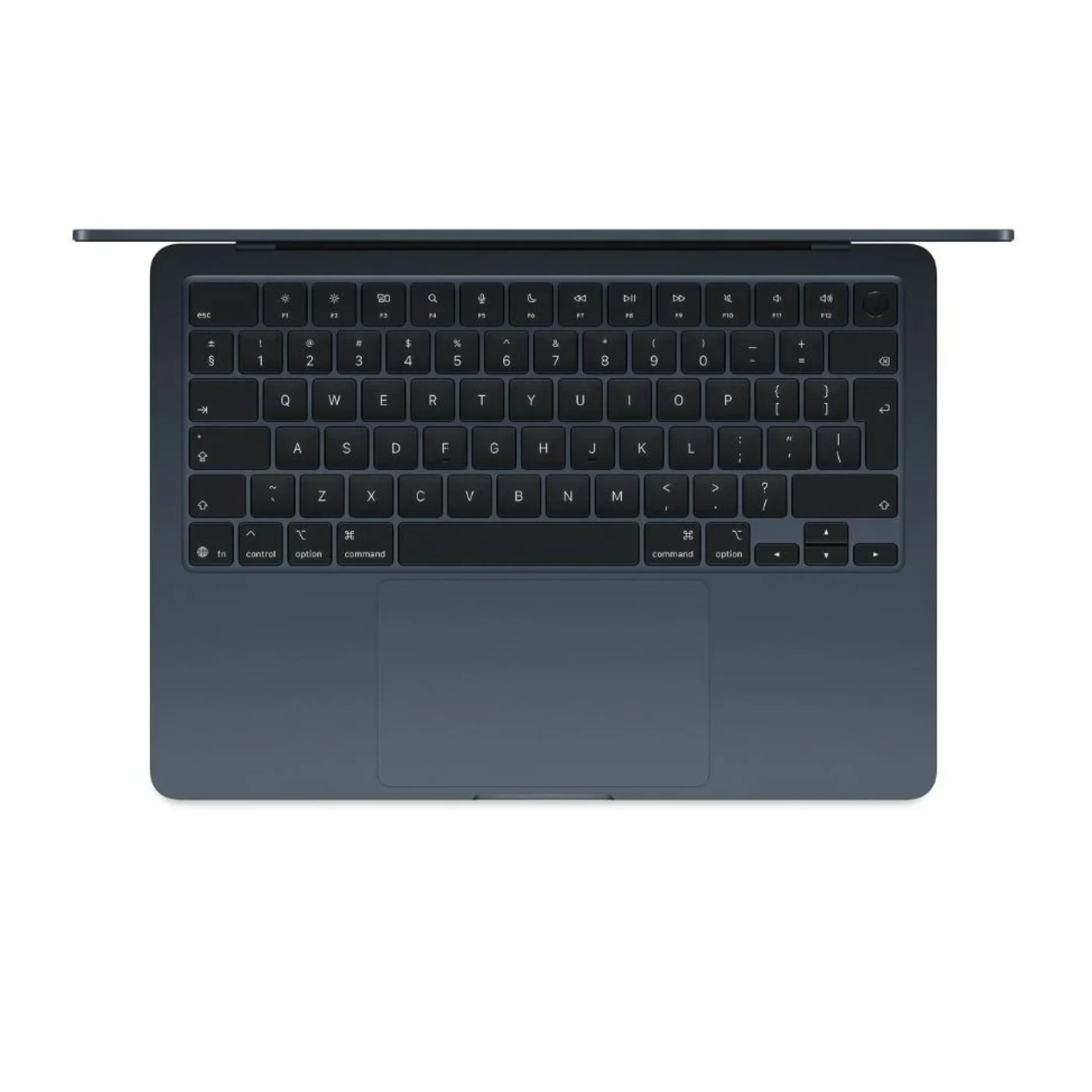 Best Portable Laptop For Video Editing
★★★★⯪ 4.5 Excellent
±£750/±US$1000
How to Choose a Video-Editing Laptop
Choosing the perfect laptop for video editing can feel overwhelming at times when you’re staring at a massive list of technical terms, but I’m here to help you make sense of it all so you can pick the right laptop, and start editing videos straight away. I know how easy it is to get lost in the specifications, so let’s focus on the main features that actually change how smooth your editing experience will be.
First, I always check if the laptop can easily run any of these apps or software like Adobe Premiere Pro, Final Cut Pro, or CapCut. To start, I look for a strong processor or CPU with at least eight cores, though having more cores gives you even better speed. Popular processor examples include:
- Intel Core i7 series or newer variants;
- AMD Ryzen 7 series or newer variants;
- Apple M4 CPU or newer variants;
The second thing I look for is the graphics card or GPU. A good graphics card is also key, especially if you work with animations and high-resolution media. As a start, you’ll need at least a GPU with 8 GB of video memory (VRAM) to create Full HD videos or 4K videos, then 16 GB or higher for 8K video production. Popular GPUs include:
- NVIDIA GeForce RTX series GPUs (RTX 4060/RTX 5060 at least)
- AMD Radeon series GPUs (RX 7600 XT/RX 9060 XT at least)
- Intel Arc series GPUs, starting from Arc 770 or newer
For system memory or RAM, I never settle for less than 16 GB of RAM so the system can handle large video files without slowing down. Then there’s the storage. Look look out for any storage more than 512 GB SSD which means Solid State Drive. The internal storage is just as essential for quick file transfers, even if you plan to use extra external drives later.
Next is the display. When it comes to the screen, I prefer large 16-inch or 18-inch displays with good color accuracy so I can actually see details clearly and ensure the final video looks right. You should start with a least a 16-inch Full HD display, with a screen resolution of 1920 x 1080. 18-inch laptops are better with better quality displays but will cost you more.
Then there’s the battery life. If you plan to edit videos on the go, a laptop with strong battery life is one of your top priorities, along with a good set of built-in ports—like an SD card reader—so you don’t have to carry around the annoying power adapter. I prefer ultra books as they’re lightweight, cos they usually come with great battery life. You’d need to check the latest laptop reviews as they highlight testing stats and info on a laptop’s battery life.
And finally, I weigh the choice between a MacBook with macOS or a Windows based laptop. If you work well with macOS, get a MacBook. If you prefer Windows, oh there’s plenty of them to choose from, keeping your overall budget in mind to make sure you get the best performance for your money. I prefer a Windows laptop as most of the apps available are supported by Windows.
Once you know how each of these parts affects your daily workflow, you can stop guessing and confidently choose a laptop that truly fits your video editing needs.
The Most Affordable Laptops for Video Editing
Finding the right laptop for video editing really comes down to matching your personal project goals with the right set of tools. Every option I recommend can smoothly run the most popular editing programs without any trouble. If I mostly work on creating standard HD videos, almost any modern laptop has enough power to get the job done. Just make sure it meets the requirements.
However, when I move up to creating sharp 4K videos or aim for that Hollywood-level quality, I know I need extra memory and a screen that displays truly accurate colors. To pick the absolute best option, I always balance my total budget against the video resolution I plan to use, while also keeping in mind how many video tracks and visual effects I intend to add. Taking a clear look at your workload today will make sure you buy a system that stays powerful enough for all your future edits.
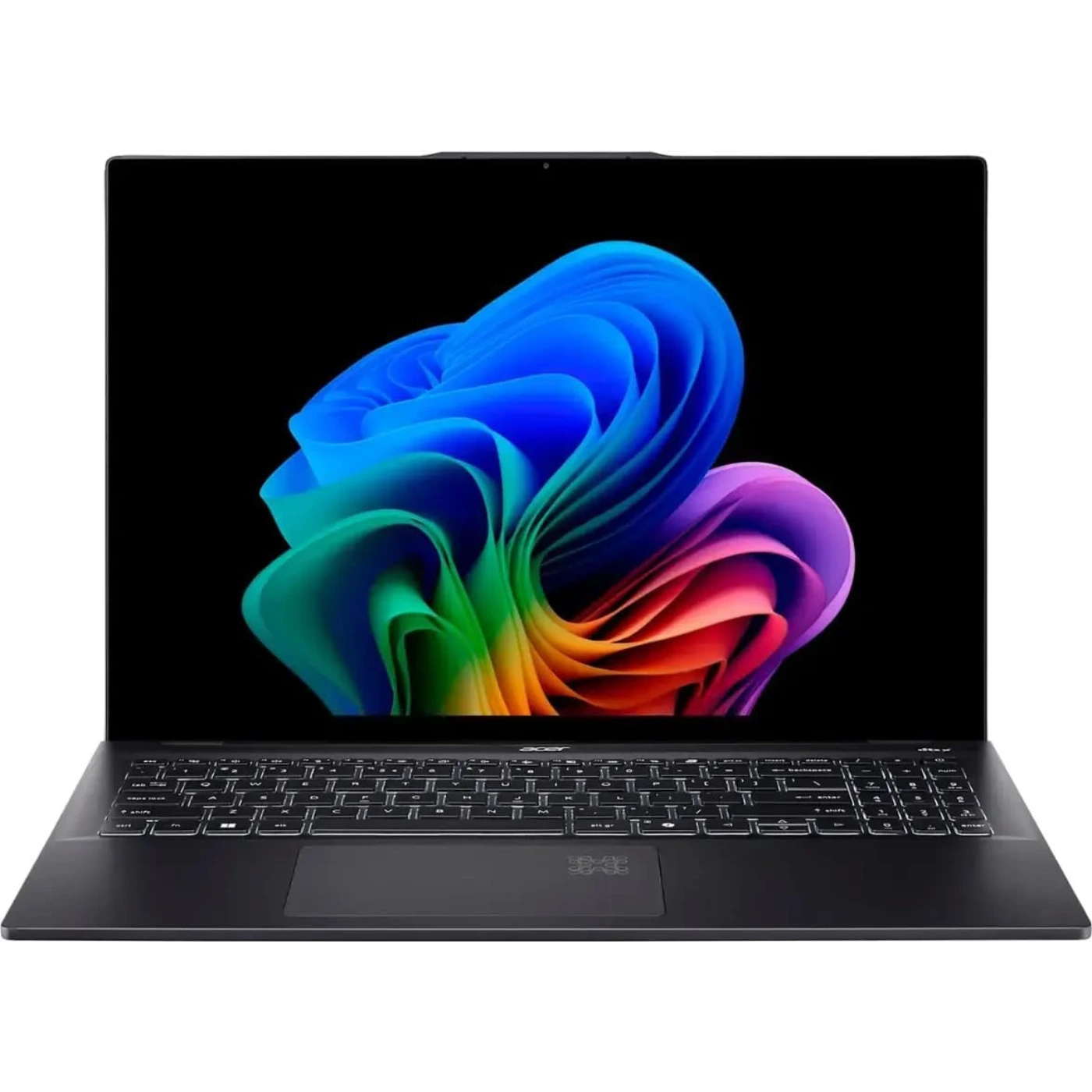
Acer Swift Go 16 AI
Specs
- DISPLAY: 16-inch, OLED 2K, 120Hz, 2048 x 1280 resolution
- PROCESSOR: Intel® Core™ Ultra 7 258V
- GRAPHICS: Intel® ARC™ 140V GPU
- MEMORY: 32 GB LPDDR5X
- STORAGE: 1 TB SSD
- O/S: Windows 11 Home
- PORTS: HDMI 2.1, 2x USB Type-A, 2x USB Type-C, headphone mic combo
- OTHER: weighs 1.52 kg (), Wi-Fi 7, Bluetooth 5.4,
Pros
- Good slim design
- Come with an OLED display
- Lightweight & portable
- Great performance overall
- Good set of input ports
Cons
- Can’t upgrade memory
- Gets hot during prolong sessions
- Quite expensive
The available 2K OLED screen is the star of the show. Covering 100% of the DCI-P3 color gamut with deep blacks, it gives you crisp visuals and accurate colors for color-grading your video footage. Finding a 16-inch laptop that weighs under 3.5 lbs (around 1.5 kg) is rare. It gives you a large workspace for your editing software timeline without dragging down your backpack.
Equipped with modern Intel Core Ultra or AMD Ryzen AI processors, the built-in NPU and upgraded integrated graphics handle standard 1080p and 4K video playback smoothly while keeping battery life strong during general tasks. Unlike many thin laptops, Acer includes a versatile port layout—including two Thunderbolt 4 / USB-C ports, dual USB-A ports, an HDMI 2.1 port, and a card reader—so connecting external drives and displays is hassle-free.
Relying on integrated graphics means the Swift Go 16 AI lacks the raw GPU power needed for heavy visual effects, 3D rendering, complex multi-cam 4K tracks, or heavy noise reduction in Premiere Pro or DaVinci Resolve. The slim aluminum chassis leaves limited space for heavy cooling fans. During long video exports, the laptop gets warm and slows down CPU speeds to manage heat, stretching out your final render times. Memory is typically soldered directly to the motherboard, meaning you cannot upgrade the RAM later down the road if your video projects demand more memory.
If you are a freelance creator editing YouTube vlogs, TikToks, marketing clips, or straightforward 1080p and 4K footage on the go, the Acer Swift Go 16 AI gives you a gorgeous screen and great portability at a reasonable price. But if your projects regularly involve heavy visual effects, multiple camera angles, or high-bitrate 4K/8K video, you’ll be much better served by a laptop with a dedicated NVIDIA graphics card or an Apple Silicon Pro processor.
ASUS Vivobook 16 OLED

Specs
- DISPLAY: 16-inch, WUXGA, OLED 60Hz, (1920 x 1200) resolution
- PROCESSOR: AMD Ryzen 7 7730U or 5825U
- GRAPHICS: AMD Radeon Graphics
- MEMORY: 16 GB DDR4 RAM
- STORAGE: 512 GB or 1TB NVMe SSD
- O/S: Windows 11 Home
- PORTS: 3x USB Type-A; USB Type-C; HDMI 1.4; 3.5mm audio combo
- OTHER: Backlit keyboard; 720p HD webcam; Wi-Fi 6E; Bluetooth 5.3; weighs 4.14 lbs./ 1.9 kg
Pros
- Impressive OLED display
- Super slim and lightweight
- Lower price
- Good performance overall
Cons
- Cooling fans can get noisy
- No microSD card reader
If you’re looking for a budget alternative that comes with more than what you bargain for, then here’s the ASUS Vivobook 16 OLED. Let me show you why. The 16-inch OLED screen is easily the star feature. With 100% DCI-P3 color coverage, deep blacks, and exceptional contrast, color grading your video footage feels precise and visually rewarding. The extra vertical screen real estate gives you far more room for video tracks, audio meters, and preview panels in Final Cut Pro, Premiere Pro, or CapCut compared to standard 15-inch displays.
Despite having a large display, the Vivobook is surprisingly thin and light to slip into a backpack, making it a great mobile workstation for editing on the go. Equipped with modern Intel Core Ultra or AMD Ryzen processors, it effortlessly handles 1080p editing, and basic AI-assisted video effects.
Base and mid-tier models rely on integrated graphics (Intel Arc or AMD Radeon) rather than a high-power dedicated GPU. If you work with 3D animation, heavy noise reduction, or complex multi-cam 4K/8K footage, rendering will feel slow.
OLED screens are naturally glossy. If you edit outdoors or under bright office overhead lighting, reflections can distract you when trying to make subtle color adjustments. Because of its thin chassis design, the cooling system can get noisy and will throttle performance during long, continuous render sessions to prevent overheating. Many models lack a full-size SD card slot, meaning you still need to carry a external USB dongle to ingest video files from your camera.
If you are a content creator making YouTube videos, social media clips, or editing 1080p and light 4K vlogs who prioritizes screen quality and color accuracy above all else, the ASUS Vivobook 16 OLED offers unmatched value.
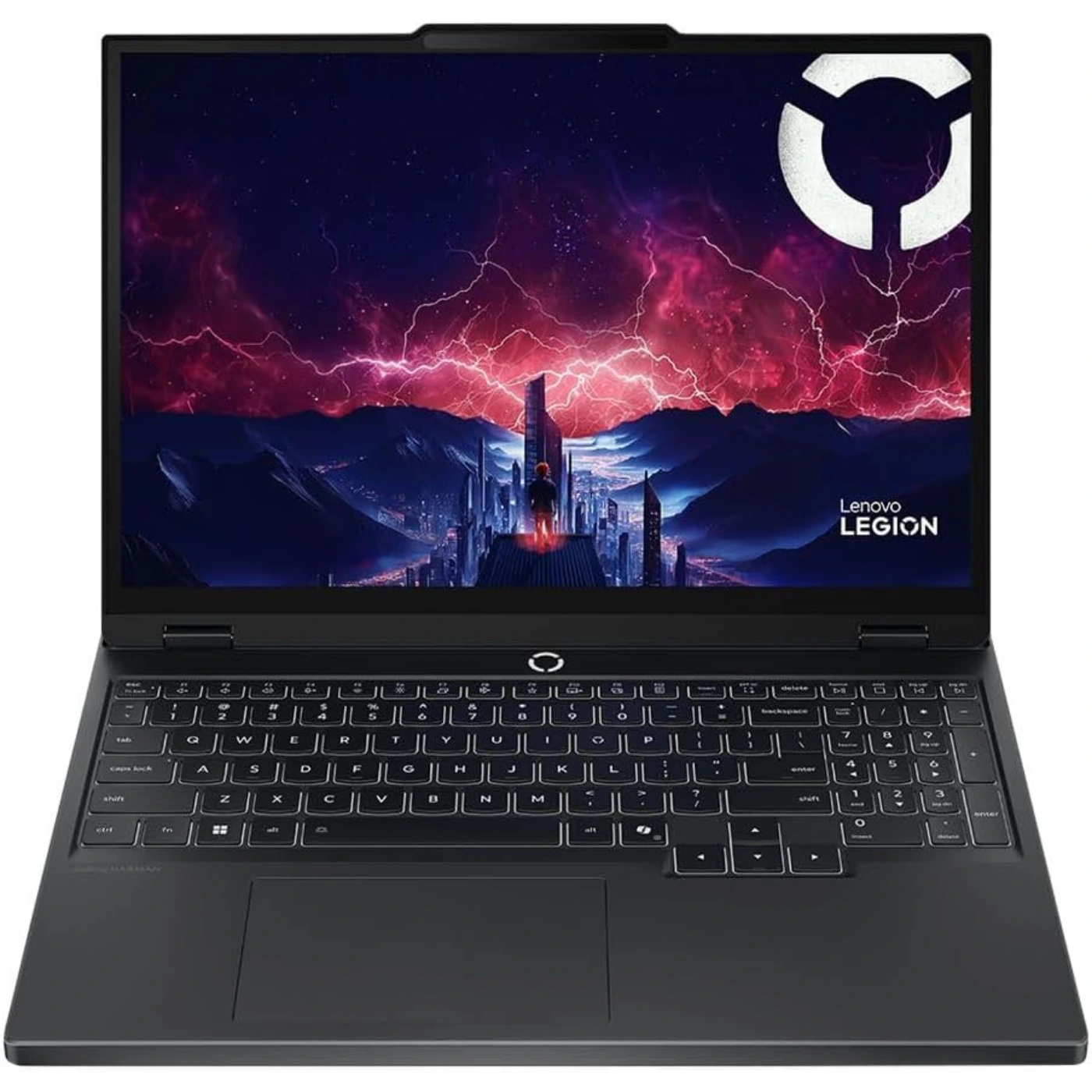
Lenovo Legion 5i
Specs
- DISPLAY: 15-inch, OLED WQXGA, 165Hz, (2560 x 1600) resolution
- PROCESSOR: Intel Core i9 14900HX
- GRAPHICS: NVIDIA GeForce RTX 5070 (8GB GDDR7)
- MEMORY: 16 GB or 32 GB DDR4 RAM
- STORAGE: 1 TB NVMe SSD
- O/S: Windows 11 Home
- PORTS: 2x USB Type-C; 3x USB Type-A; HDMI 2.1; 3.5 mm audio combo jack; Ethernet jack
- OTHER: RGB Backlit keyboard; 720p HD webcam; Wi-Fi 7; Bluetooth 5.4; weighs 4.19 lbs./ 1.9 kg
Pros
- Great for gaming
- Excellent performance
- Bright colorful display
- Quite lightweight
- Good array of input ports
Cons
- Short battery life
- Loud cooling fans
- Not really affordable
If gaming is something else you’d love to do after a great video editing session, then check out this mid-range gaming laptop, the Lenovo Legion 5i. This is another great editing tool for so many reasons. The dedicated NVIDIA graphics card (like the RTX 5060 or 5070) gives you dedicated hardware encoding and CUDA acceleration. This makes a massive difference in apps like Premiere Pro, DaVinci Resolve, and After Effects when scrubbing through timelines, applying heavy color grades, or rendering 3D effects.
The 15.1-inch OLED screen (2560 x 1600 resolution) is an editor’s dream. It hits 100% DCI-P3 color coverage with factory calibration and deep contrast, so you can trust the exact colors and exposure you see on screen when grading your video clips. Thanks to Lenovo’s ‘Coldfront’ cooling system with thick heat pipes and dual fans, the high-power Intel Core processor doesn’t slow down during long rendering sessions. It keeps running at high speeds when exporting massive videos, especially 4K projects, where fan-less laptops usually heat up and throttle. You get a full array of ports right out of the box—including Thunderbolt 4, multiple USB-A ports, Ethernet, and an HDMI 2.1 port for external 4K monitors. Plus, you can easily open up the laptop to add more RAM or a second SSD as your video projects grow in size.
Now for the not-so-good-points of this amazing gaming laptop. Because of its high-performance Intel processor and hungry graphics card, the battery life is short. You will only get a good 5 hours of basic use on a single charge—and if you try video editing on a battery, it drains rapidly which limits performance. Yes, it really needs to be plugged to a power source.
Despite having plenty of side and rear ports, Lenovo left out an SD card slot. If you shoot on a camera, you’ll have to carry a separate USB dongle everywhere to offload your SD card footage. When you push the hardware with multi-track 4K video or complex visual effects, the fans spin up loudly to exhaust the heat. If you like editing in total silence at a quiet coffee shop or library, the fan noise can be distracting.
If you need raw performance for heavy 4K video creations, multi-cam editing, or complex visual effects without paying a premium workstation price, the Legion 5i (Gen 10) offers incredible power and a top-tier OLED display for the money. Just make sure you plugged it comfortably onto a wall outlet.
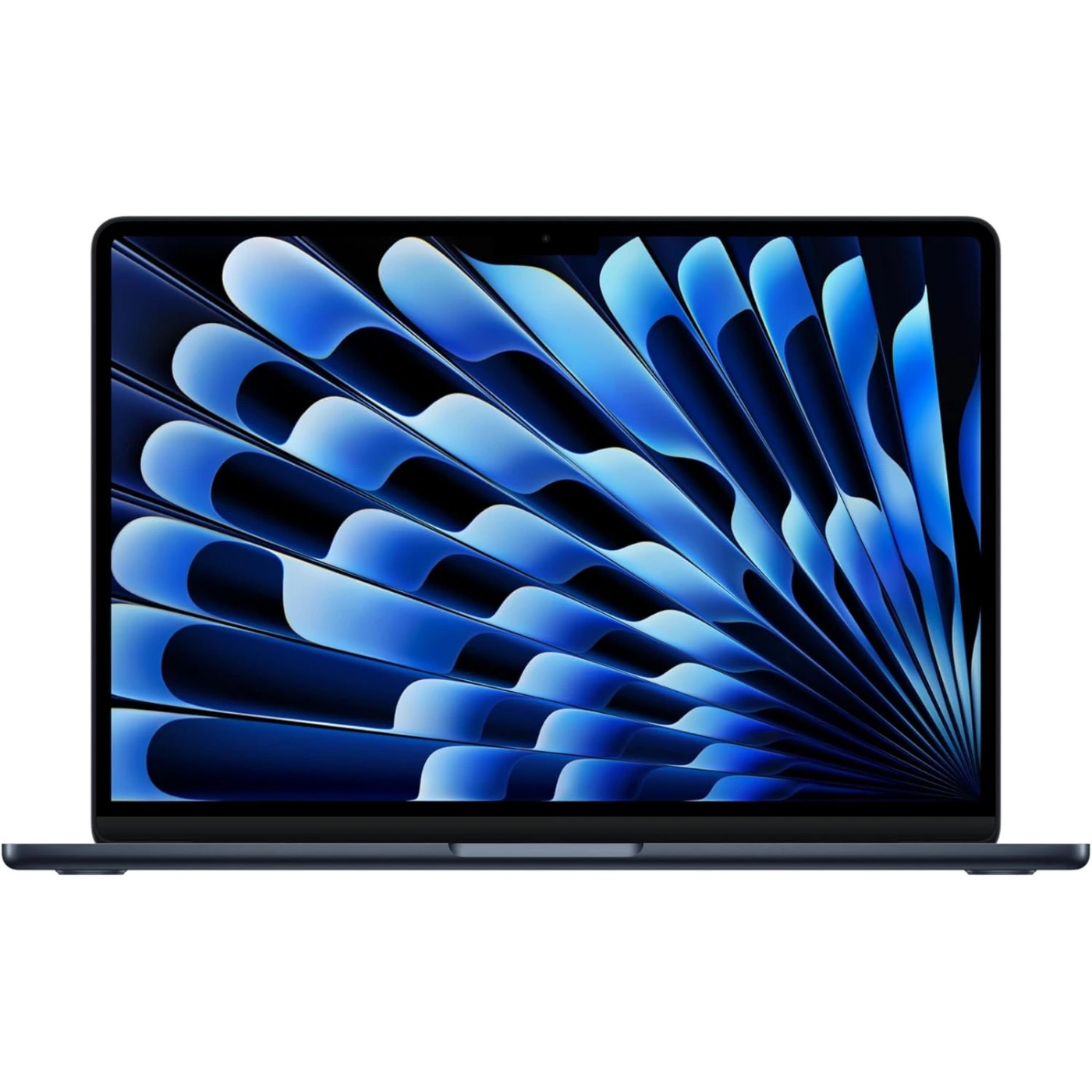
Apple MacBook Air (2025, M4)
Specs
- DISPLAY: 13.6-inch, Liquid Retina, 60Hz, (2560 x 1664) resolution
- PROCESSOR: Apple M4 CPU (10-core)
- GRAPHICS: Apple GPU (8-core)
- MEMORY: 16 GB unified RAM
- STORAGE: 256 GB or 512 GB SSD
- O/S: Apple macOS Sequoia
- PORTS: 2x USB Type-C (Thunderbolt 4)
- OTHER: 1080p FaceTime Full HD webcam; Wi-Fi 6E; Bluetooth 5.3; weighs 2.7 lbs./ 1.9 kg
Pros
- Low price
- Fast processing power
- Improved memory
- Lightweight & quiet, fan-less design
- Better ‘Centre Stage’ camera
- Good battery life
- Able to upgrade memory and storage
Cons
- Great but lower quality display
- Other Windows laptops somewhat better
- Hardware upgrades can be expensive
- Few input ports
If video editing with a MacBook is your preference, and have a limited budget, then check out the MacBook Air. Why you ask? The M4 processor really punches above its weight. Editing 1080p for YouTube, TikTok, or Instagram is butter-smooth. The dedicated media engine inside the chip processes video codecs like H.264 and ProRes natively, so scrubbing through your timeline feels fast and responsive. Apple finally made 16GB of unified memory the standard base configuration. This makes a massive difference when you have Final Cut Pro or Premiere Open alongside a web browser and motion apps without instantly slowing down.
The MacBook Air has insane battery life and dead silence. Because it has no internal fan, this laptop runs completely silent. I can edit video at a coffee shop or on a flight for hours on battery power alone without worrying about fan noise or hunting for an outlet. The display comes with excellent color-accuracy. Though it’s a 60Hz display, it’s still as sharp, as bright, and supports wide P3 color. You can trust the colors you see on screen when color-grading your footage.
Check Out The Review of the MacBook Air!
Not all is production bliss with this one. There’s a few things to note. The lack of a fan is a double-edged sword. During long video exports or heavy multi-cam edits, the laptop heats up and automatically slows down the M4 chip to keep cool, which stretches out your render times. You only get two Thunderbolt ports and a headphone jack. There is no built-in SD card slot or HDMI port, meaning you will constantly need to carry a dongle or USB hub to offload footage from your camera.
The base 256GB storage space fills up almost instantly with large video files. Once you pay extra to upgrade to 512GB or 1TB of storage and 24GB of RAM, you get very close to the price of a 14-inch MacBook Pro—which gives you active fan cooling, an SD card reader, and a much better display. If you’re a content creator, making videos for social media, or editing 1080p content, the MacBook Air (2025, M4) is a dream to carry around and use.
Lastly
Finding a fast, budget-friendly laptop for video editing doesn’t have to be a nightmare anymore. Over the past few weeks of testing them, I was honestly blown away by how much power you can get without spending a fortune. Gone are the days when high performance was locked behind a massive price tag—these budget beasts handle timeline scrubbing, effects, and exports with surprisingly smooth speed.
If you’re ready to stop letting a sluggish laptop hold back your creative energy, I strongly encourage you to pick one up today and give your channel or business the better content it deserves. Which of these models sounds like the best fit for your workflow? Drop a comment below with your thoughts or questions, and let’s talk tech 😀


 LGMadyibi


+ There are no comments
Add yours